
Remote access to the beamline computers is provided through the NoMachine server.
Install NoMachine Enterprise Client:
Before beam time please download and install NoMachine:
-
On your PC, navigate to: https://download.nomachine.com/enterprise/?product=enterprise-client
-
Follow the download instructions for the NoMachine Enterprise Client appropriate to your computer and operating system
-
Install the Client onto your computer
Setup your connection:
-
Start NoMachine Enterprise Client
-
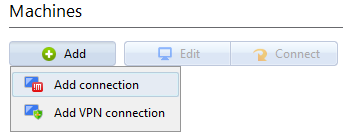
Select Add under machines → Add connection
-
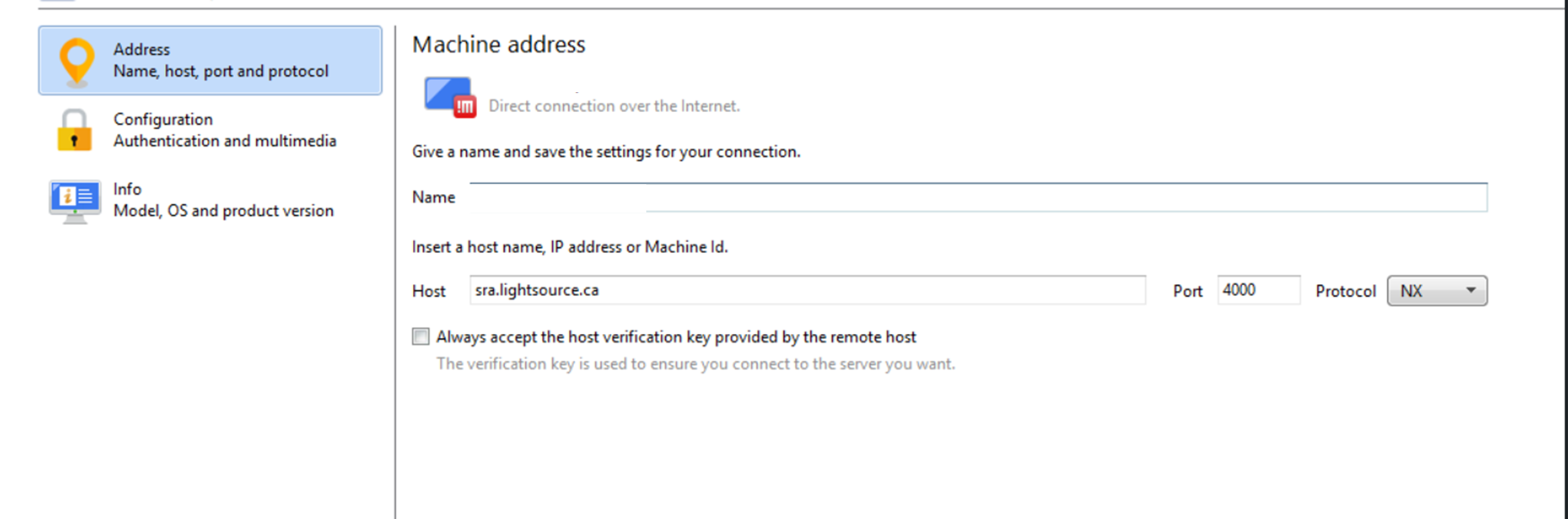
Set connection settings:
-
Name: your choice
-
Host Address:
sra.lightsource.ca -
Port Number:
4000 -
Protocol:
NX
-
-
Accept the host verification key
-
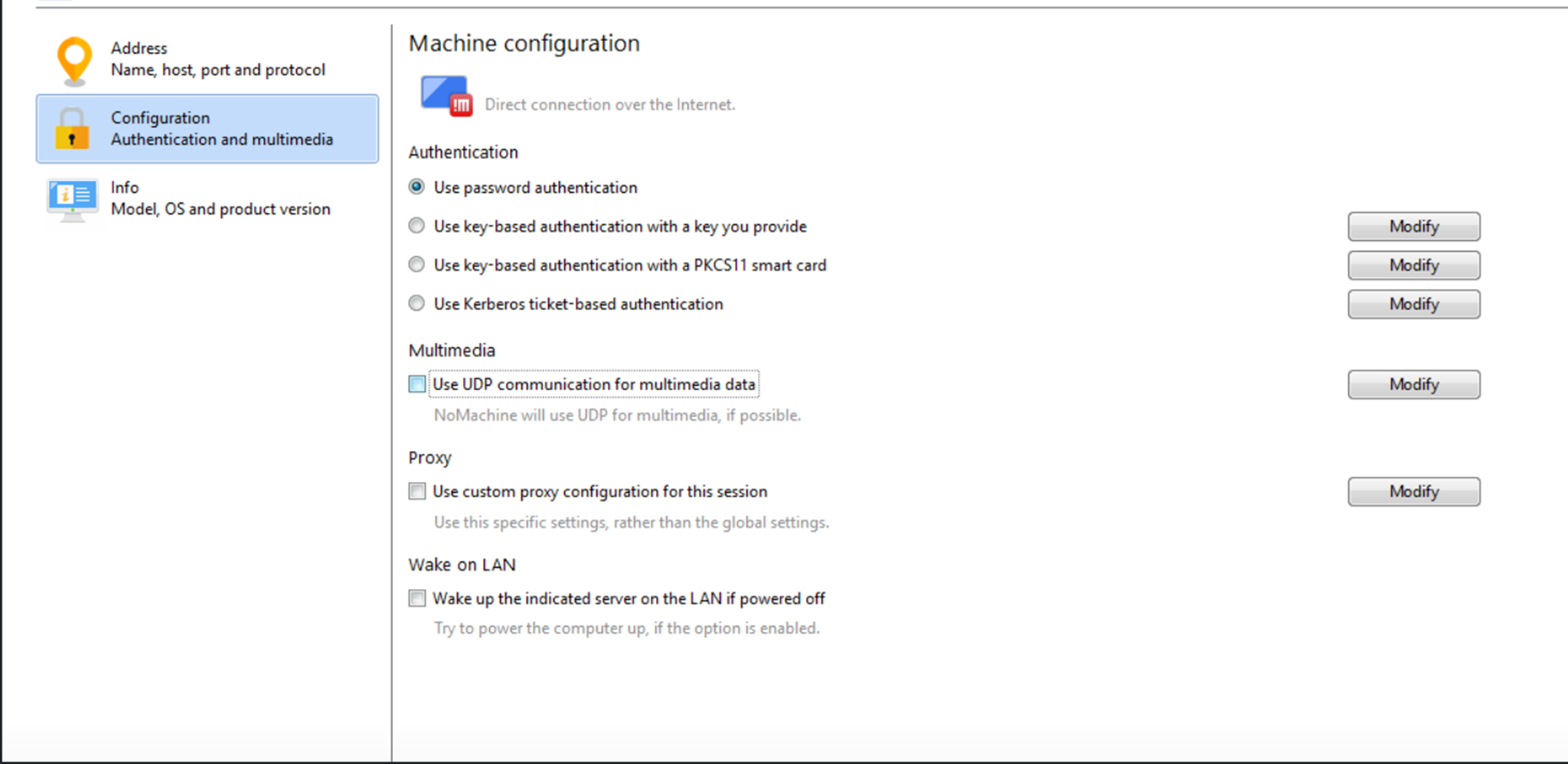
Un-check UDP.
-
If prompted about proxy settings, choose Don’t use a proxy (unless you are on a proxied network), Continue
-
Click ‘Add’.
Log Into the Beamline Computer
-
Double-click the new connection to launch it.
-
Enter Username and Password**
-
Enter the
nm-username and password provided by your beamline staff.
-
-
Accept the presented certificate fingerprint.
-
Double-Click the new connection to launch it.
-
Username/Password: The
nm-user and password. -
Continue through the remaining prompts by selecting OK and Do Not Show Again where applicable. Leave all default settings unchanged.
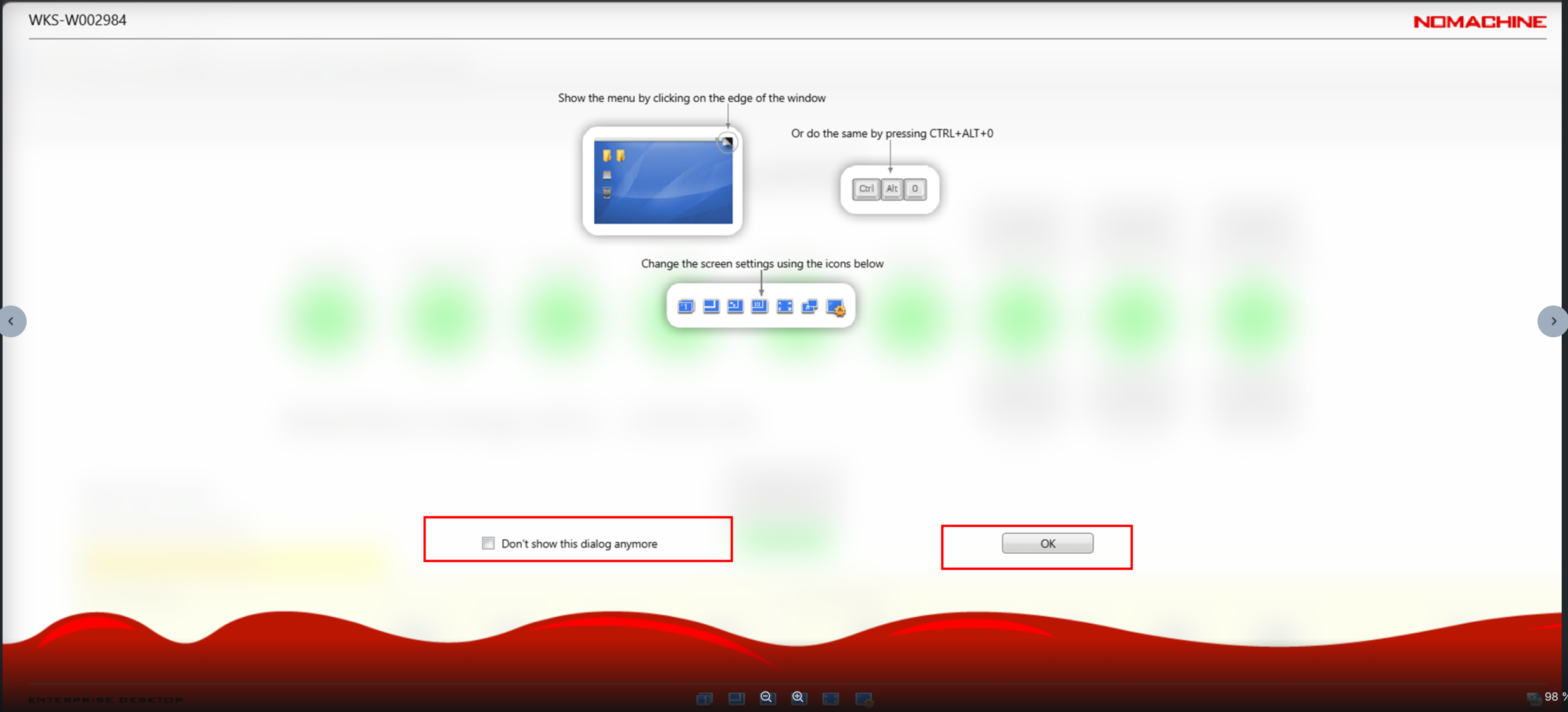
Follow the steps below to adjust the display scale to fit your computer screen:
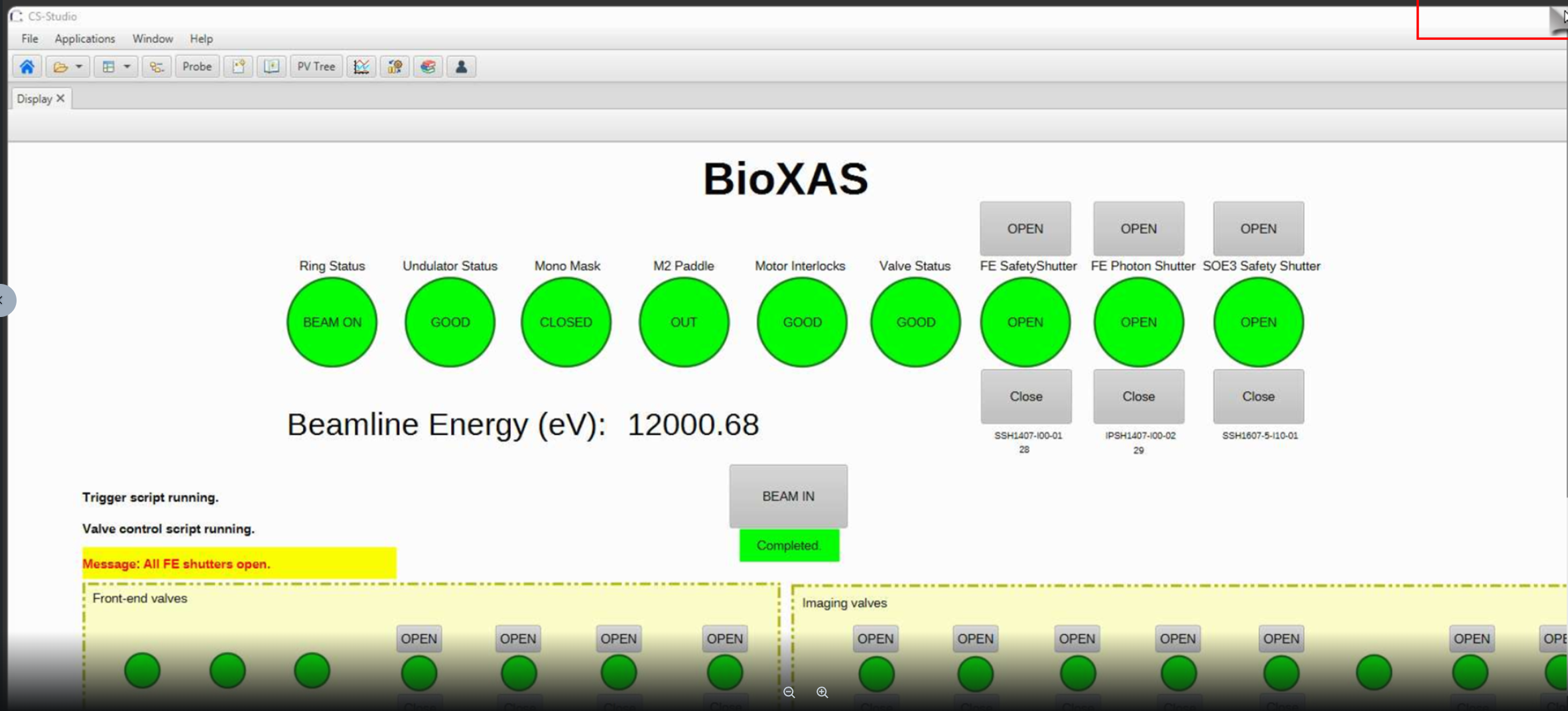
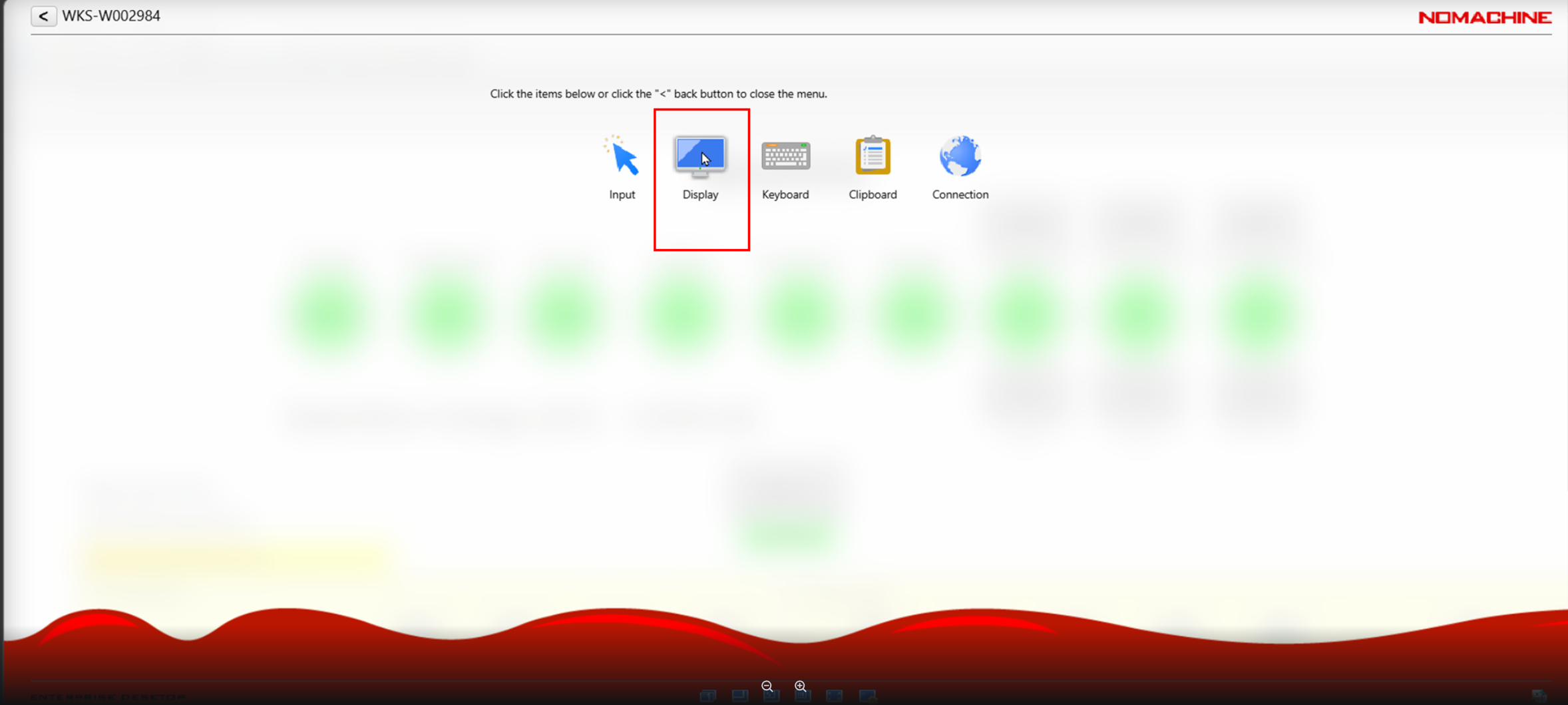
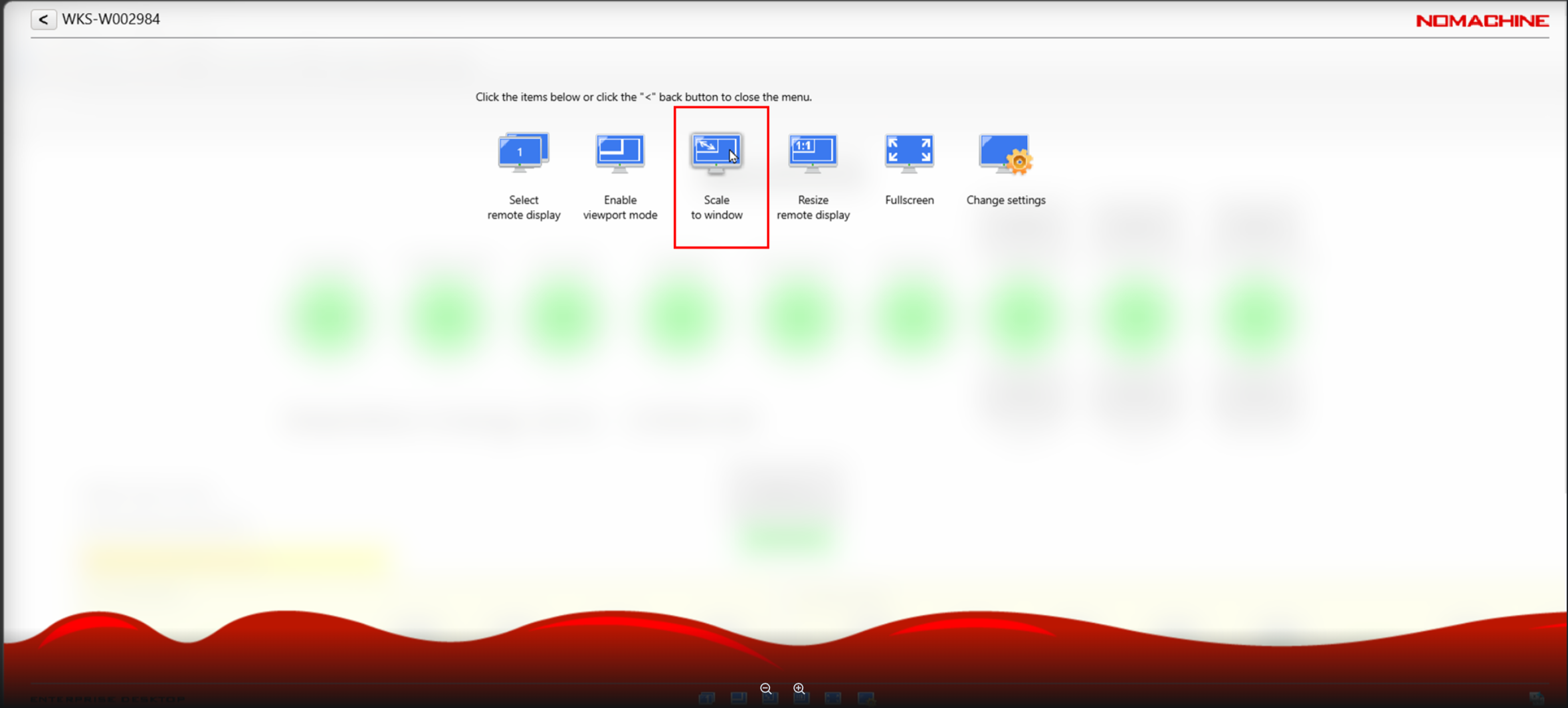
Alternatively, use the shortcut Ctrl + Alt + F to go full screen. Or use a shortcut specific to your browser to activate full screen mode. For Microsoft edge, the full screen mode shortcut is the press of the single button F11.
-
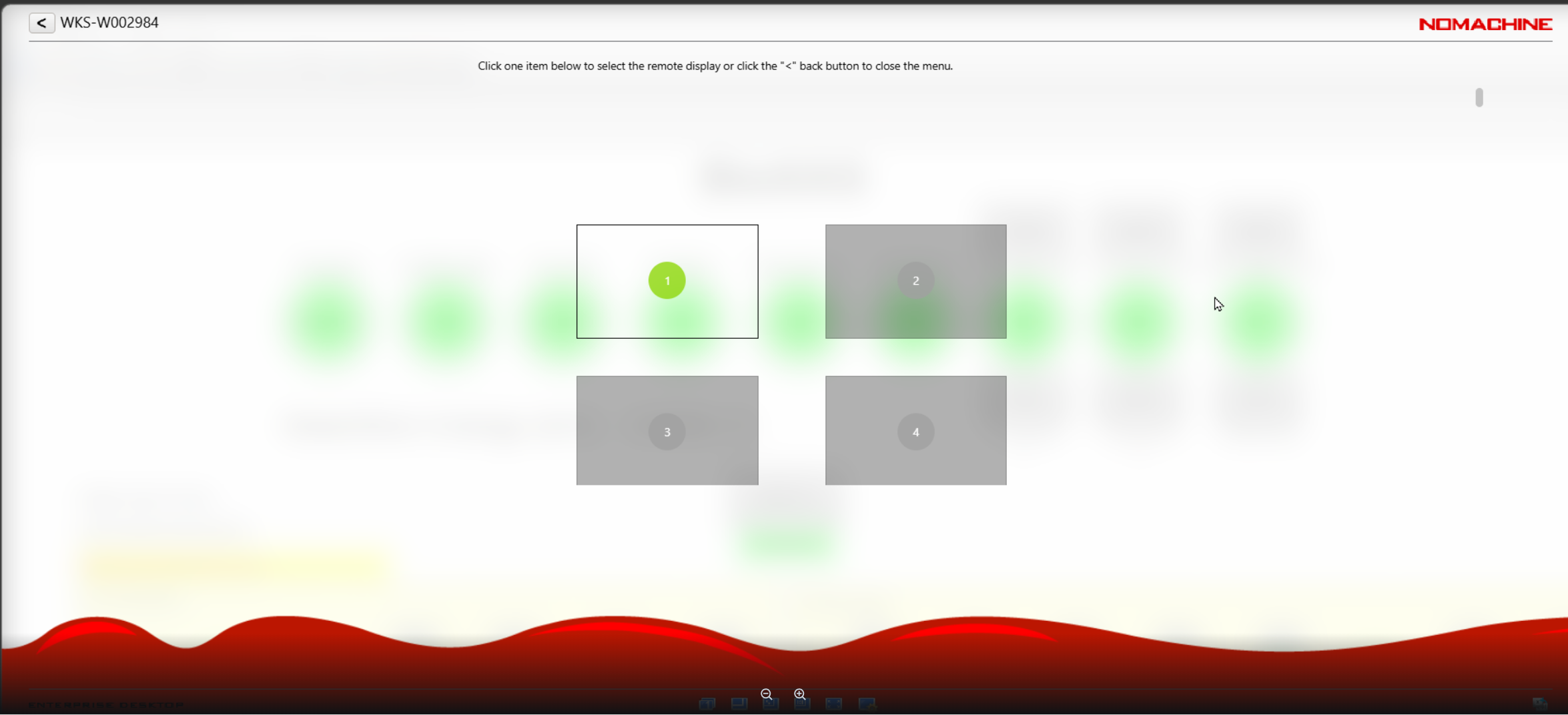
If the computer has multiple displays connected, follow the steps below to switch between the displays (or use the shortcut Ctrl + Alt + 2 to go to the second display).:
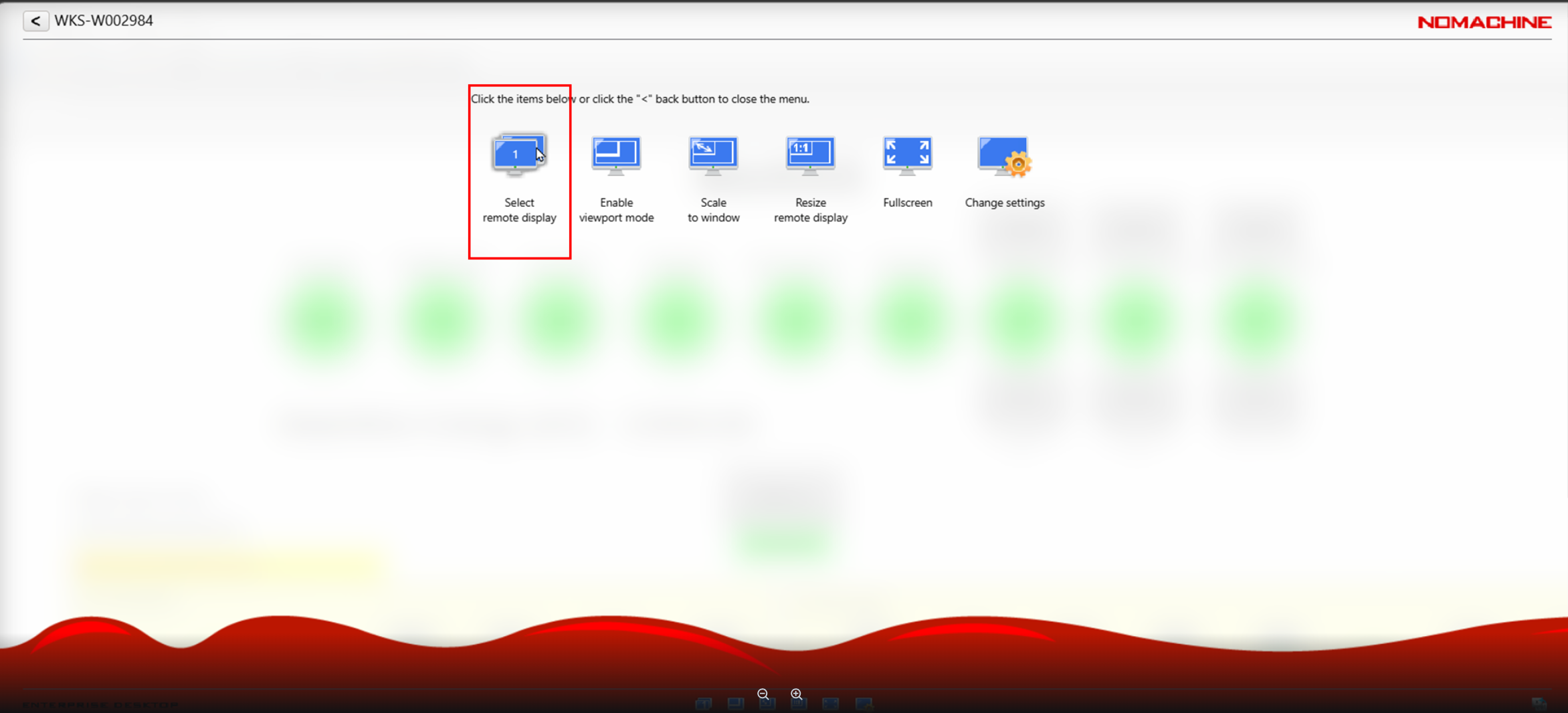
Precaution: Please avoid having multiple people remotely connected to the same computer at the same time. When two or more users attempt to control the mouse simultaneously, it can result in unintended clicks and selections. To prevent these issues, ensure that only one person has control of the computer at a time unless coordination between users is required and clearly established.